

Amplitude
Amplitude is a digital analytical platform used to understand user behavior, measure product performance, and optimize UX. It provides tools for instrumentation, experimentation and engagement.
Initialization
Section titled “Initialization”To enable Amplitude in your iTwin Studio app, you will need to have a valid amplitudeKey.
The key need to be passed to iTwin Studio in your app.config.json:
{ "appId": "my-startup-app", "displayNameEnglish": "My Startup App", ... "amplitudeKey": "<YOUR_AMPLITUDE_KEY>"}or
{ "appId": "my-startup-app", "displayNameEnglish": "My Startup App", ... "amplitudeKey": { "qa": "<YOUR_AMPLITUDE_KEY_QA>", "prod": "<YOUR_AMPLITUDE_KEY_PRODUCTION>" }}Event Tracking
Section titled “Event Tracking”Event tracking is the core of Amplitude analytics. Every meaningful user action can be tracked as an event, and custom properties can optionally be added.
Track events in backend
Section titled “Track events in backend”import { StudioStartupHost } from "@bentley/studio-startup-apps-backend-api";
StudioStartupHost.trackAnalyticsEvent({ event_name: "Reading backend amplitude wiki", event_source: "backend" });Track events in frontend
Section titled “Track events in frontend”import { StudioStartupHost } from "@bentley/studio-startup-apps-frontend-api";
StudioStartupHost.trackAnalyticsEvent({ event_name: "Reading frontend amplitude wiki", event_source: "button-click" });Event names
Section titled “Event names”When naming events, use sentence case and keep names simple so they are easy to understand at a glance.
You don’t need to prefix your event names with your app name, this is handled for you.
StudioStartupHost.trackAnalyticsEvent({ event_name: "my_app :: sidebar :: button_clicked" });StudioStartupHost.trackAnalyticsEvent({ event_name: "Sidebar button clicked" });Naming of custom properties
Section titled “Naming of custom properties”If you need to use custom properties, make sure that the keys are snake case.
StudioStartupHost.trackAnalyticsEvent({ event_name: "Reading frontend amplitude wiki", eventSource: "button-click" });StudioStartupHost.trackAnalyticsEvent({ event_name: "Reading frontend amplitude wiki", event_source: "button-click" });Surveys and guide
Section titled “Surveys and guide”“Surveys” allows teams to collect user feedback directly in app. “Guides” are app onboarding tool designed to drive user activation and adoption.
To add an Amplitude survey/guide to an iTwin Studio app, the following steps should be followed:
- Open Amplitude’s Guides tab or Surveys tab in your browser
- click “Create Survey” or “Create Guide”
- Choses a template or blank start blank
- Run iTwin Studio in developer mode and copy the xpath of the element
- Switch to Amplitude “Guide and Survey” designer in your browser
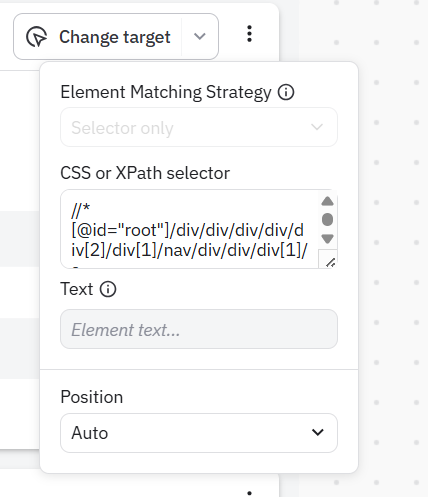
- click the “down” arrow in the “change target”
- Select “Selector only” from Element Matching Strategy
- Paste the xpath in the input field
- Optional select the anchor position
Session replays
Section titled “Session replays”To enable session replays for a iTwin Studio app, you only need to enable it in Amplitude’s session replay settings. All session replay configuration (sampling conditions, masking level, etc.) should be configured there. Afterwards, as long as you initialize Amplitude in your app, session replays will be automatically uploaded to your amplitude project.