

Building an installer for your app
iTwin Studio provides the following installer for Windows:
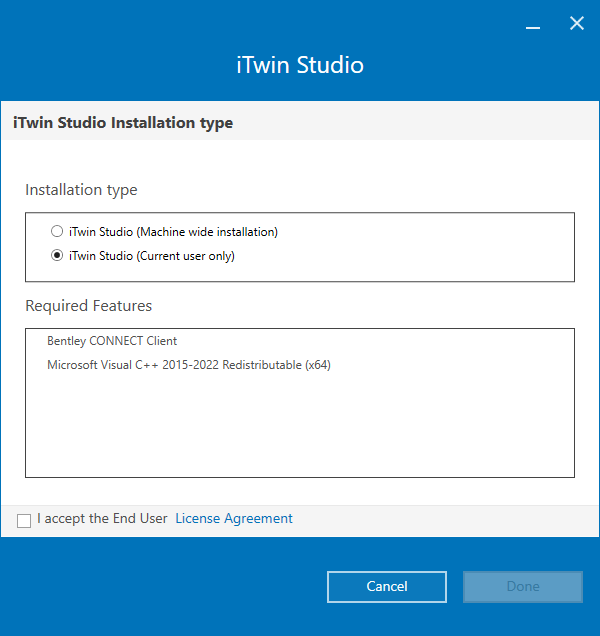
This installer is used for the initial installation, auto-updates and can be consumed by app bundle installers.
Why a dual Mode Installer?
Section titled “Why a dual Mode Installer?”iTwin Studio installer supports two installation modes: “per-user” and “per-machine”. This is done for the following reasons:
- iTwin Studio needs to deliver prerequisites that must be installed with elevated (administrator) permissions.
- The “end user” may not be able to grant the required administrator permissions - involvement of a separate IT administrator account might be required.
- 1 & 2 mean that “per-machine” installation mode is required.
- At the same time, iTwin Studio still supports auto-updates - which cannot require admin permissions, and thus Studio must install to %localAppData%.
- Auto-updates are installed as per-user.
Since Studio does not want to expose two installers, a single dual-mode installer for both use cases made the most sense. A similar approach is recommended for app installers. It’s not a hard requirement however, and you could build an installer with “per-machine” scope only. Due to iTwin Studio requirements though, “per-user” installation might still require administrator permissions (to install prerequisites) - as such, we don’t recommend having per-user installation only. The only exception is if you can ensure that iTwin Studio and it’s prerequisites will be installed before your app.
Technical stack
Section titled “Technical stack”Whilst Studio provides some documentation and examples on how to build an app installer, it assumes some prior knowledge and familiarity with the technology stack involved. If more resources are required, please consult the following resources:
- Wix:
- Install Framework
- .Net Cake
Workflows
Section titled “Workflows”See Workflows doc for details about all of the various installation workflows and edge cases.
studio-installer CLI
Section titled “studio-installer CLI”The studio-installer package provides a CLI to build your app’s Windows installer without needing to manually configure WiX or Cake.
Prerequisites
Section titled “Prerequisites”Before running the create command, you need to install the required tools. Run the setup command once to do this automatically:
npx @bentley/studio-installer setupThis will:
- Install dotnet SDK 9, Azure CLI, and NuGet via winget (skipped if already present)
- Authenticate with Azure (
az login) - Install the NuGet artifacts credential provider
- Restore NuGet packages and dotnet tools
Creating an installer
Section titled “Creating an installer”npx @bentley/studio-installer create ./path/to/my-app.zipThis builds an installer and places the artifacts in ./out by default. The main output is a bundle — a bootstrapper .exe that embeds your app’s MSI and any custom payloads (e.g. .NET runtime), and orchestrates installing them in the correct order. The bundle is the file you distribute to end users.
Other files placed alongside it include a .wixpdb symbols file, a productinfo file, and the app zip. External payloads (when isExternal: true) are placed in an InstallerExternalPayloads folder rather than embedded inside the bundle — useful when a payload is too large to ship as part of a single executable.
You can also pass a config file with upgrade codes, dependencies and other options:
npx @bentley/studio-installer create ./path/to/my-app.zip --config payloads.jsonYou can also target the beta variant of iTwin Studio:
npx @bentley/studio-installer create ./path/to/my-app.zip --variant betaCustom configuration
Section titled “Custom configuration”The --config file lets you declare custom payload installers to bundle with your app, override upgrade codes, set a custom icon, and configure the output directory.
Full example
Section titled “Full example”{ "upgradeCodes": { "msi": "YOUR-EXISTING-MSI-UPGRADE-CODE", "bundle": "YOUR-EXISTING-BUNDLE-UPGRADE-CODE", "machineWideMsi": "YOUR-EXISTING-MACHINEWIDE-MSI-UPGRADE-CODE", "machineWideBundle": "YOUR-EXISTING-MACHINEWIDE-BUNDLE-UPGRADE-CODE" }, "iconPath": "path/to/your-icon.ico", "outDir": "./out", "payloads": [ { "id": "DotNetDesktopRuntime8", "displayName": "Microsoft .NET Desktop Runtime 8.0.8", "source": { "type": "azureCli", "command": "artifacts universal download --organization https://dev.azure.com/bentleycs/ --feed upack --name dot_net_desktop_runtime_redist --version 8.0.8", "fileName": "windowsdesktop-runtime-8.0.8-win-x64.exe" }, "packageType": "exe", "installerConfig": { "installCommand": "/q /norestart", "vital": false }, "installerType": "always", "detection": { "root": "HKLM", "key": "SOFTWARE\\WOW6432Node\\dotnet\\Setup\\InstalledVersions\\x64\\sharedfx\\Microsoft.WindowsDesktop.App", "name": "8.0.8", "variable": "DotNetRuntime_InstalledVersion_x64", "condition": "DotNetRuntime_InstalledVersion_x64" } } ]}Top-level properties
Section titled “Top-level properties”| Property | Required | Description |
|---|---|---|
payloads | Yes | Array of prerequisite installers to bundle. See Payload properties below. |
upgradeCodes | No | GUIDs used to identify your installer packages. When omitted, upgrade codes are derived deterministically from your app’s package name. Provide these explicitly in production to keep them stable across releases. |
upgradeCodes.msi | No | Upgrade code for the per-user MSI. |
upgradeCodes.bundle | No | Upgrade code for the per-user bundle. |
upgradeCodes.machineWideMsi | No | Upgrade code for the machine-wide MSI. |
upgradeCodes.machineWideBundle | No | Upgrade code for the machine-wide bundle. |
iconPath | No | Absolute or relative path to a .ico file used as the installer icon. Defaults to the bundled itwin-studio.ico. |
outDir | No | Directory where the built installer artifacts are written. Defaults to ./out. |
Payload properties
Section titled “Payload properties”| Property | Required | Description |
|---|---|---|
id | Yes | Stable unique identifier for this payload. Used as the WiX package ID. Must be alphanumeric with no spaces or special characters (e.g. "DotNetDesktopRuntime8"). |
displayName | Yes | Human-readable name shown in the installer UI (e.g. "Microsoft .NET Desktop Runtime 8.0.8"). |
source | Yes | Where to obtain the installer file. See Source types below. |
packageType | Yes | "exe" for bootstrapper/setup executables, "msi" for MSI packages. |
installerConfig | Yes | Command-line arguments passed to the installer. See Installer config below. |
installerType | No | Controls when this payload is installed: "always" (default), "perUserOnly", or "perMachineOnly". |
detection | No | Registry-based check to skip installation if the payload is already present. See Detection below. |
isExternal | No | When true, the payload installer file is not embedded inside the main bundle executable. Instead it is placed in an InstallerExternalPayloads folder alongside the main installer. Useful for large payloads that would make the bundle too large to distribute as a single file. Defaults to false. |
Source types
Section titled “Source types”"url" — download from a public URL:
"source": { "type": "url", "url": "https://example.com/dependency-setup.exe"}"local" — use a file already on disk:
"source": { "type": "local", "path": "D:\\installers\\dependency-setup.exe"}"azureCli" — download from an Azure Artifacts universal package (requires az login, which the setup command handles):
"source": { "type": "azureCli", "command": "artifacts universal download --organization https://dev.azure.com/bentleycs/ --feed upack --name my-package --version 1.0.0", "fileName": "dependency-setup.exe"}The --path argument is injected automatically; do not include it in command. The fileName is the name of the file expected inside the download directory after the command completes.
Installer config
Section titled “Installer config”| Property | Required | Description |
|---|---|---|
installCommand | Yes | Arguments passed to the installer executable on install (e.g. "/q /norestart"). |
uninstallCommand | No | Arguments passed on uninstall. Defaults to "/uninstall /quiet". |
repairCommand | No | Arguments passed on repair. Defaults to "/repair /quiet". |
vital | No | Whether the bundle should abort if this package fails to install. Defaults to true. Set to false for optional prerequisites. |
Detection
Section titled “Detection”Registry-based detection lets the installer skip a payload that is already present on the machine.
| Property | Required | Description |
|---|---|---|
root | Yes | Registry hive: "HKLM" (all users) or "HKCU" (current user). |
key | Yes | Registry key path, e.g. "SOFTWARE\\WOW6432Node\\dotnet\\Setup\\InstalledVersions\\x64\\sharedfx\\Microsoft.WindowsDesktop.App". |
name | Yes | Registry value name to read. |
variable | Yes | WiX variable name to store the detected value in. Must be unique across all payloads in your config. |
condition | No | WiX condition expression used as the DetectCondition. References the variable above. When omitted, the payload is always installed. Example: "DotNetRuntime_InstalledVersion_x64". |
Recommended App Changes
Section titled “Recommended App Changes”To ensure the full workflow support for Windows installers, we recommend making the following changes to your app.config.json:
{ "appId": "[sample-app]", "windows": { "addToAddAndRemovePrograms": true, "upgradeCode": "[Guid matching your `bundleUpgradeCode`]" }, "displayNameEnglish": "[Display name]", "icons": [ { "src": "./[icon-name].ico", "type":"image/x-icon" } ]}- add an
iconsentry. The icon here will be used to create shortcuts. If no icon is specified, shortcut will not be created during machine-wide installations. Note that this replaces the old--shortcutCLI arg. - add
windows.addToAddAndRemovePrograms. This prompts Studio to create an entry in add/remove programs, allowing users to uninstall your app. displayNameEnglishentry will be used for display in add/remove programs.- add
windows.upgradeCode. Value must match the Wix bundle upgradeCode. This ensures that if your application is installed via the WIX bundle, Studio can:- Update the version shown in “add/remove programs” when your app is auto-updated (rather than creating a separate entry)
- Un-install the bundle when
Studio apps uninstall [yourApp]is invoked. This is done by finding an entry inHKCU:\Software\Microsoft\Windows\CurrentVersion\Uninstallwith a matchingBundleUpgradeCodeand invoking it’sBundleCachePathwith uninstall CLI flags. - Mentioned entries in
Software\Microsoft\Windows\CurrentVersion\Uninstallwill be created by a standard WIX installer and do not require any additional actions. - Note: the above will not happen if the above specifies “machine wide” bundle upgrade code, due to limited permissions.
How each entry is used is also mentioned in the Workflows doc.
Why Wix?
Section titled “Why Wix?”WIX and Bentley’s Install Framework are the standard installer frameworks for Bentley desktop applications. It provides the standard UX, allows installing multiple prerequisites/features, supports localization, etc.
What are the next steps for an app release through software downloads?
Section titled “What are the next steps for an app release through software downloads?”Note that releasing to software downloads will require a “fully fledged” release pipeline. This means performing mend scans, audit, going through scorecard validation, etc.
See Release Service documentation for more detail:
What about cross-platform apps?
Section titled “What about cross-platform apps?”If you wish to build a installer for Linux/Mac, please get in touch with the Studio development team.